Downloads
CAD data
Guide to downloading CAD data
How to download 3D CAD data
3D CAD data can be downloaded from PARTcommunity by Cadenas Web2CAD Co., Ltd.
You can select your preferred data format.
Click here for instructions on how to download 3D CAD data.
How to Download Dimensional Drawings with Modified Terminal Box Position
3D Modify the terminal box position in 3D CAD data and download the PDF dimensional drawing.
3D CAD data is provided via PARTcommunity by CADENAS Web2CAD Inc.
Click here for instructions on downloading PDF dimensional drawings with modified terminal box positions.
STEP 1: Enter the product model or select an item using the product name or filter search.
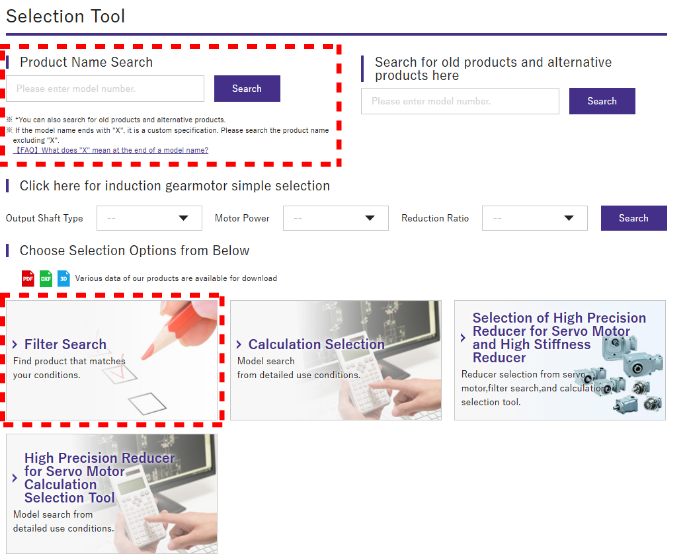
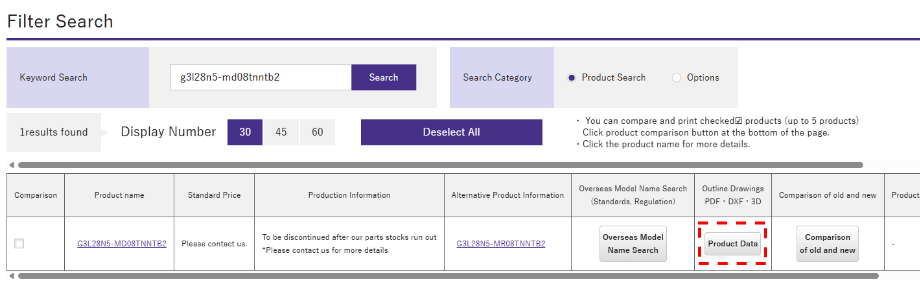
STEP 2: Click the “3D” button on the product results or product details page.
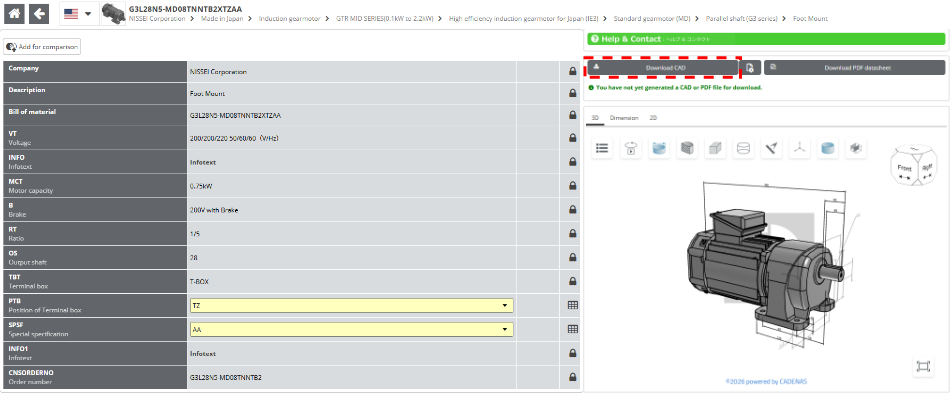
STEP 3: Click "Generate CAD data"
STEP 4: Select the download format.
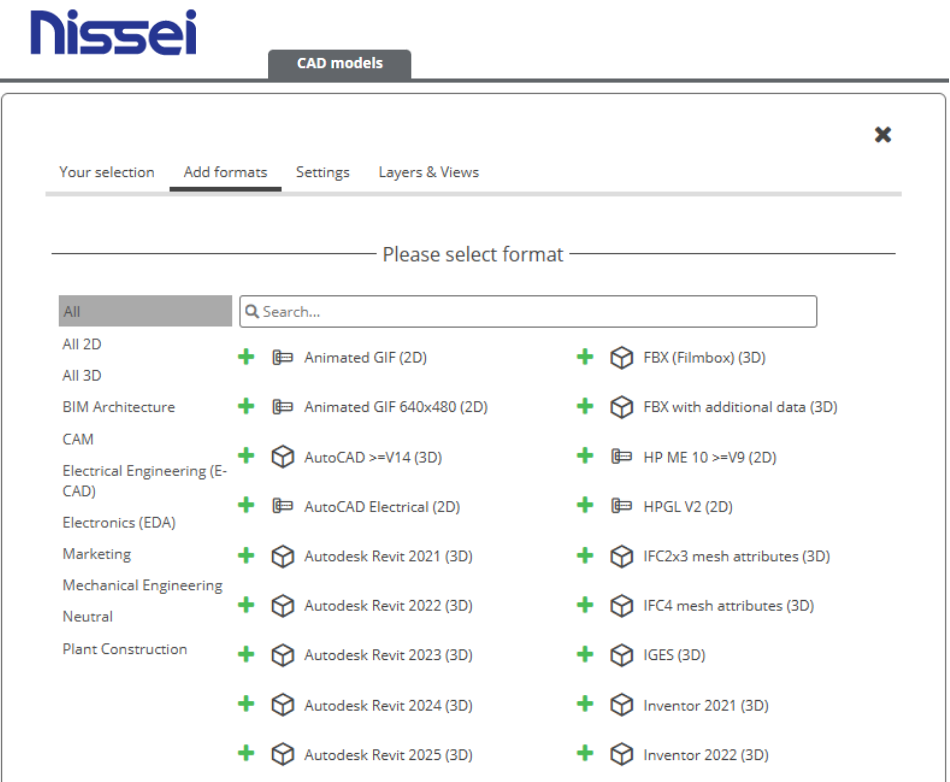
STEP 5: Click "Start generation"
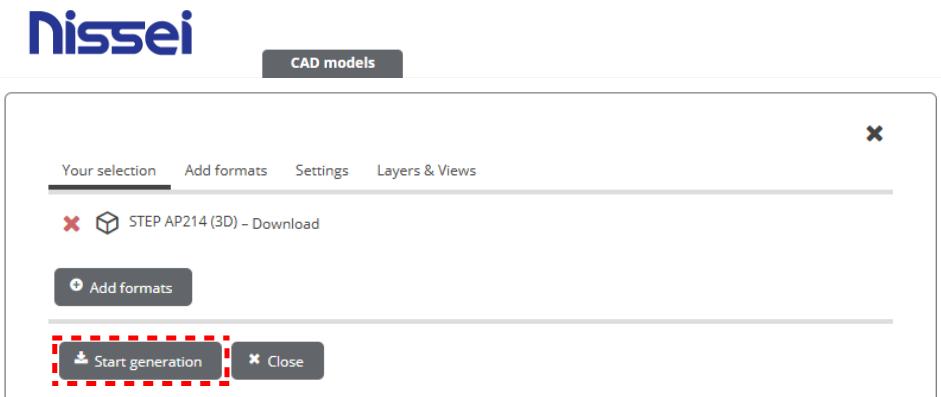
STEP 6: The ZIP file is downloaded.

STEP 1: Enter the product model or select an item using the product name or filter search (search using the product name without the optional specification code “X**”).
STEP 2: Click the “3D” button on the product results or product details page.
STEP 3: Select box position modification and wiring in the “Terminal Box / Lead Wire Position” and “Special Specifications” sections.
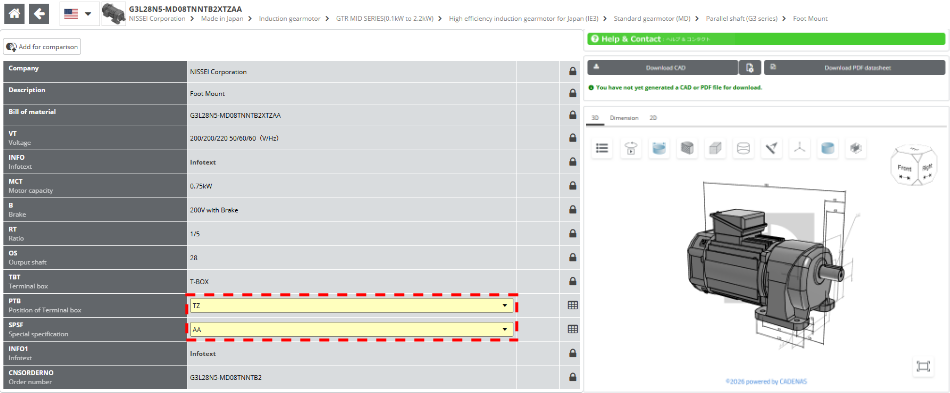
Step 4: Click "Generate PDF datasheet" to download the ZIP file
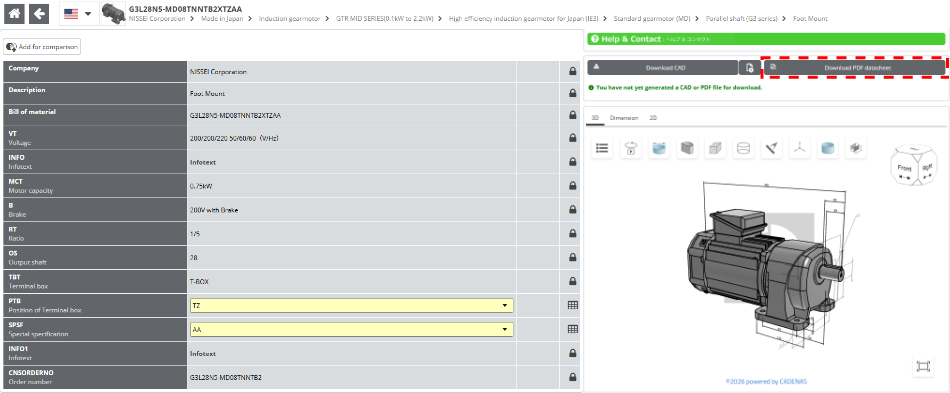
Step 5: Select the PDF from the ZIP file to complete the PDF output
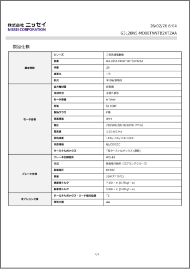
Cover
(1/4)
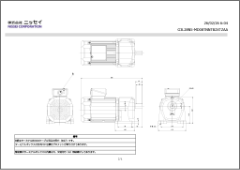
Dimensional drawing
(2/4)
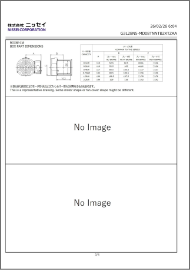
Box dimensional detail drawing (3/4)
Product specifications
(4/4)